
Free Fire Lag Fix for Low-End Android Phones
Free Fire Lag Fix for Low-End Android Phones (2026 Guide) If Free Fire keeps freezing, skipping frames, or dropping to a crawl....
Read More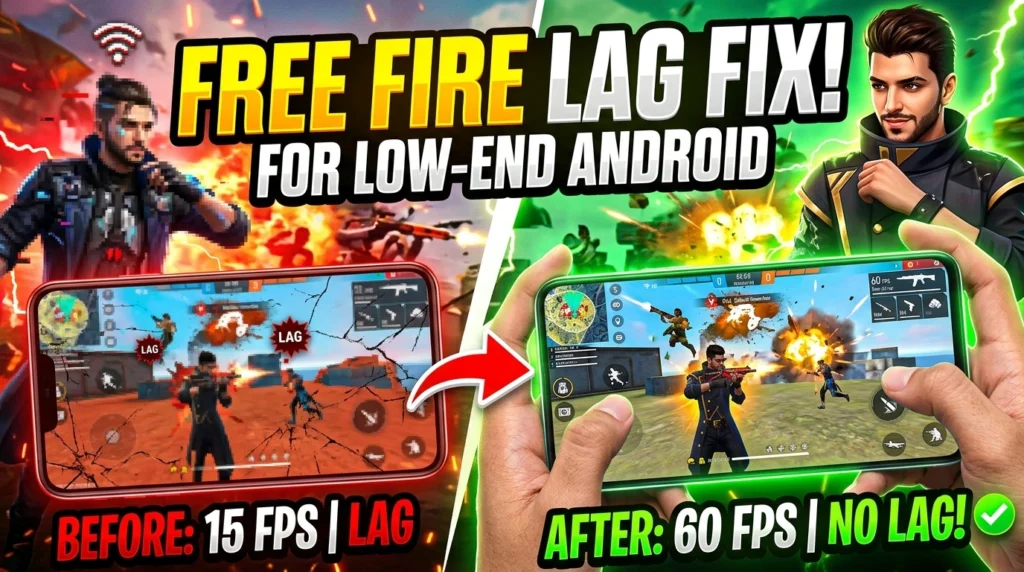 Uncategorized
Free Fire Lag Fix for Low-End Android Phones (2026 Guide) If Free Fire keeps freezing, skipping frames, or dropping to a crawl....
Read More google play redeem codes
Last Updated: June 2026 | Reading Time: 8 min | Works for: Free Fire,...
Read More free fire names
Free Fire Best Style Names 2026 – 500+ Stylish FF Names for Boys, Girls...
Read More Esports
If you follow Free Fire esports, you already know that the Esports World Cup...
Read MoreIf Free Fire keeps freezing, skipping frames, or dropping to a crawl the moment a gunfight starts, you’re not alone. Most lag complaints come from phones with 2GB or 3GB RAM, older chipsets, or storage that’s almost full — and the good news is that nearly all of it is fixable without buying a new phone.
This guide walks through every real fix that actually works on low-end Android devices, in the order you should try them.
Before jumping into fixes, it helps to know what’s actually causing the lag:
Once you know the cause, the fix becomes obvious. Here’s the full checklist.
This is the single biggest fix for low-end devices.
Smooth mode strips back shadows, reflections, and detailed textures — exactly the things that hurt low-RAM phones the most.
Inside Settings → Graphics, also disable:
These run in the background even during downtime and quietly eat frame rate.
Go to Android Settings → Apps → Free Fire → Storage → Clear Cache (not Clear Data — that wipes your login).
Do this once every few days. Free Fire’s cache builds up quickly with map assets, and a bloated cache is one of the most common causes of stutter on phones with under 4GB RAM.
Keep at least 1.5–2GB of free internal storage at all times. Low storage forces Android to slow down all read/write operations, including the ones Free Fire needs to load matches and textures.
Quick wins:
On 2GB/3GB RAM phones, even one or two background apps can push Free Fire out of memory mid-match, causing a hard freeze. Before playing:
Outdated app versions often carry unresolved performance bugs. Check:
Garena regularly optimizes newer OB updates for lower-end hardware, so staying updated can genuinely help.
If your phone gets hot after 15–20 minutes of play:
Thermal throttling is invisible until it happens — the game just suddenly feels laggy for no reason, and this is usually why.
Graphics lag and network lag look similar but need different fixes:
A simple restart clears leftover background processes and temporary memory buildup — something clearing cache alone doesn’t always fix. Doing this before a ranked session can noticeably reduce the chance of mid-match freezes.
| Setting | Recommended Value |
|---|---|
| Graphics Quality | Smooth |
| Frame Rate | Low |
| Shadows | Off |
| Aim Assist Effects | Off |
| Cache | Cleared every 3–4 days |
| Free Storage | 1.5GB+ minimum |
Why does Free Fire lag even on Smooth graphics? This usually points to background apps, low storage, or overheating rather than the graphics setting itself. Work through the cache, storage, and background-app fixes above.
Does clearing cache delete my Free Fire progress? No. Clearing cache only removes temporary files. Clearing Data would remove your login and progress, so always choose Cache only.
Will a lag fix work permanently, or do I need to repeat it? Cache buildup and storage clutter happen again over time, so clearing cache and freeing storage is something worth doing weekly, not just once.
Is Low Frame Rate bad for gameplay accuracy? No — on low-end phones, a stable low frame rate gives smoother, more predictable aim than a high frame rate that keeps stuttering.
Still getting lag after trying all of the above? Pair this with our [Free Fire Sensitivity Settings guide] to make sure your control setup isn’t adding to the problem.